Minecraft Skin Template: 64x64 PNG, UV Map and Layers Explained
 PixelSkin
A clear guide to the Minecraft skin template: the 64x64 size, where every body part sits on the texture, the outer layer, Classic vs Slim arms, and the old 64x32 format.
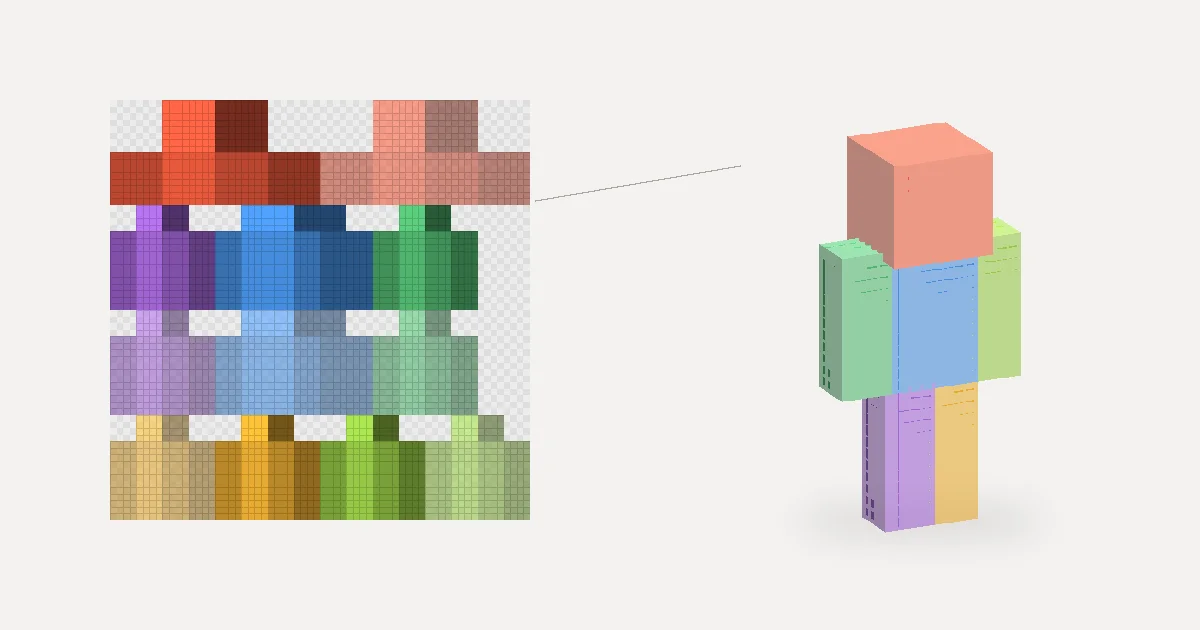
The Minecraft skin template is the map that tells the game which pixel of your PNG goes on which side of which body part. Once you can read it, editing a skin texture stops being guesswork. This guide covers the 64×64 size, the exact position of every part, the outer layer, and the differences between Classic, Slim and the old 64×32 format.
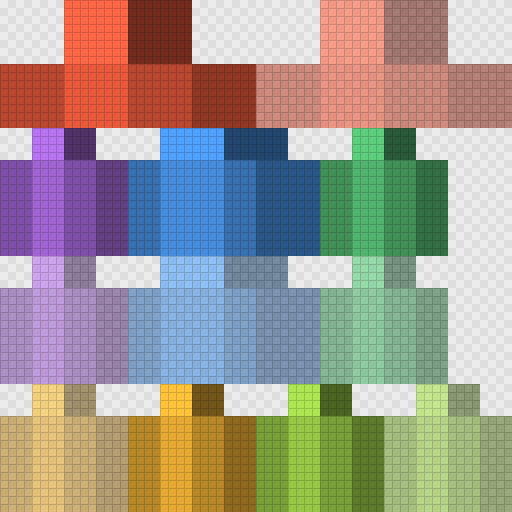
Download the color-coded template used in this article: classic-template.png (64×64) or the 8× preview. Each body part has its own color; the front of each part is the lightest shade, the back the darkest, and the outer layer is semi-transparent.

Minecraft skin size: 64×64
A modern skin is a 64×64 pixel PNG with a transparent background. The image holds two copies of the body:
- the base layer, the body itself, and
- the outer layer (sometimes called the overlay or second layer), drawn slightly larger around the base. It is used for hats, hair, jackets, sleeves and pants.
Bedrock Edition also accepts 128×128 skins with the same layout at double resolution. The older 64×32 format only has the top half: one arm and one leg (mirrored for the other side) and an outer layer only on the head.
How a body part is unfolded
Every part is a box, and every box is unfolded the same way. For a box that is w wide, h tall and d deep, starting at texture position (U, V):
- top is at
(U + d, V)and bottom at(U + d + w, V), eachw × d - below them runs a strip: right side, front, left side, back, all
htall
"Right" and "left" mean the character's own right and left. In a front view the character's right arm is on your left, which is the most common reason skins come out mirrored.
Where every part sits (Classic model)
Coordinates are the top-left corner of the part's unfolded box, in pixels from the top-left of the image.
Base layer
- Head, 8×8×8: starts at (0, 0). The face (front) is the 8×8 square at (8, 8).
- Body, 8×12×4: starts at (16, 16). The front is 8×12 at (20, 20).
- Right arm, 4×12×4: starts at (40, 16). The front is 4×12 at (44, 20).
- Left arm, 4×12×4: starts at (32, 48). The front is at (36, 52).
- Right leg, 4×12×4: starts at (0, 16). The front is at (4, 20).
- Left leg, 4×12×4: starts at (16, 48). The front is at (20, 52).
Outer layer
- Hat: starts at (32, 0). The front is at (40, 8).
- Jacket: starts at (16, 32).
- Right sleeve: starts at (40, 32). Left sleeve: starts at (48, 48).
- Right pants leg: starts at (0, 32). Left pants leg: starts at (0, 48).
Everything outside these rectangles is unused. Leave it transparent.
Classic vs Slim arms
The only difference is arm width. Classic (Steve) arms are 4 pixels wide; Slim (Alex) arms are 3 pixels wide, so each arm strip is 2 pixels narrower and the front and back faces are 3 pixels wide instead of 4. A skin painted for one model and uploaded as the other shows a column of wrong or empty pixels on each arm. When you upload, choose the model the skin was made for.
Rules for a clean skin texture
- Base layer: fully opaque. Transparent pixels on the base body can show up as holes or black, depending on the edition.
- Outer layer: opaque or fully transparent. Semi-transparent pixels are not shown the same way in every edition; use them only if you have checked the result.
- No smoothing. Export without anti-aliasing so every pixel stays one solid color.
- PNG only. A JPG loses transparency and adds blur.
Reading the template in 3D
The flat texture is hard to judge on its own: seams between the front and the sides, and the way the top of the head meets the face, only become obvious on the model. Painting directly on a 3D character avoids the mapping problem entirely, and you can still export a standard file. If you are starting from zero, our step-by-step guide to making a skin covers the order to paint things in, and a skin base gives you shading and a face to build on.
Try it now
Skip the coordinates and describe the character instead. This link opens the editor with a prompt ready to generate:
A botanist in a green apron over a cream shirt, with rolled sleeves and a satchel of seeds →